Using Collections
A Collection is one of the three file types in Opus—and by far the most important one. Collections are best used to prepare sessions or settings in advance. Here’s a Collection titled CoS.
On the left and center panels, the blocks, explained in details below. On the right panel, the playlists.

What is a block?
The main organizational component that you see in the middle of a Collection is called a block. Blocks can have some or all of the following: title, body text, images (via URL embed), ambiences, sound effects and music. A block may be a specific location, event, or setting, like “Throne Room” or “Goblin Ambush” (or anything that makes sense to you). It’s flexible but structured.
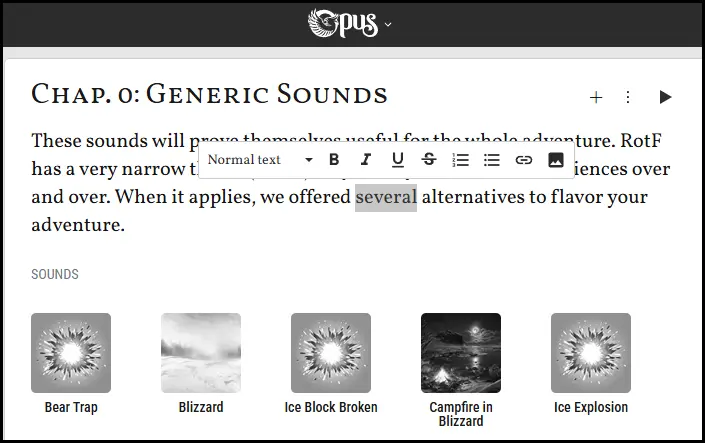
You can also add ambiences, sound effects and music to existing blocks by clicking on the + buttons within a block, then using the Search feature to find and add results:

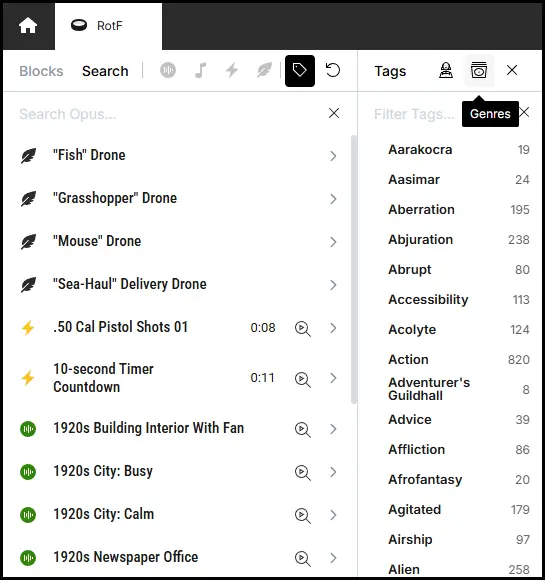
It opens the Search function on the left panel, which temporarily replaces the list of blocks. You see all the elements you can add to a block. “Fish” Drone is a text scene, 10-second Timer Countdown is an SFX, 1920s City: Busy is an ambience. As you can see, it’s color-coded like the rest of the app.
Over the scenes, you have 4 toggles to filter what specific content you’d like. The blackened element are the tags, which are expanded in the example. You can select additional tags to filter the propositions in the search. Both columns have search boxes in which you can write to look for names or specific tags.
At the top of the tags column, you can additionally select genres (Fantasy, Modern and Sci-Fi) or even specific composers.
Left panel blocks
Clicking on block titles will jump the screen to the position of the block. And by using drag and drop, blocks can be nested:

What does the right sidebar of a Collection and Roam do?
The right sidebar behaves similarly in Roam and in a Collection.
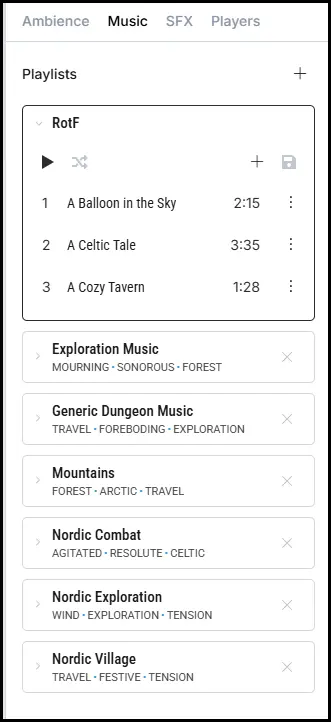
In a Collection, it’s primarily used for preparing and playing music and sound effects that are not tied to a specific location or event and thus not added to a block. Perhaps it’s a leitmotif or a spell cast habitually by the party’s wizard. In Roam, it’s simply where pinned music and sound effects are stored and played.
You can add music or sound effects by clicking on the + button at the top right, then using the Search feature to find and add results.
Collection options
Lastly, in the header, there’s a file menu containing further settings and options.
To allow your file to be found and copied by other Opus users (“Opossums,” as David calls them), set it to ‘Public’.
